JumpCloud Installation
Before you begin, make sure you have downloaded the Cyberhaven Sensor for macOS and the Cyberhaven.mobileconfig MDM profile from the Console.
Deploying the Cyberhaven MDM Configuration Profile
- In the JumpCloud Admin Portal, navigate to Device Management > Policy Management.
- Click on the plus (+) symbol to create a new policy.
- Under the Mac section, search for MDM Custom Configuration Profile.
- Enter a policy name and optional policy description.
- Upload the
Cyberhaven.mobileconfigMDM profile downloaded from the Cyberhaven Console. - Assign to the appropriate Policy Group or Device Group. Click Save.
- Wait for the deployment to complete.
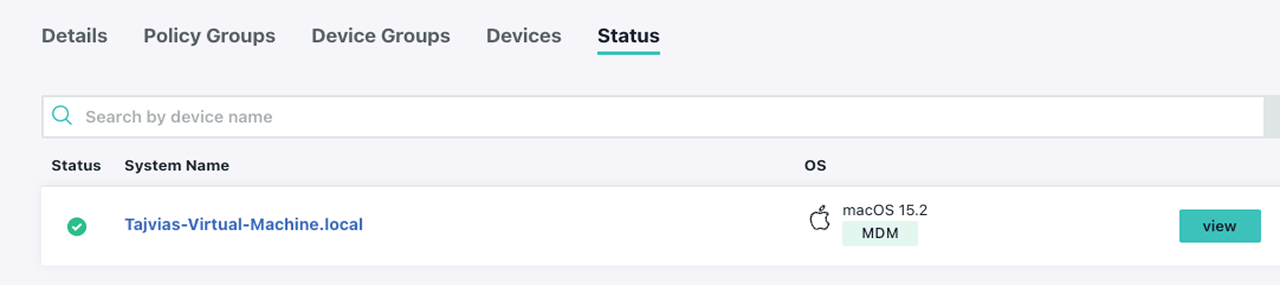
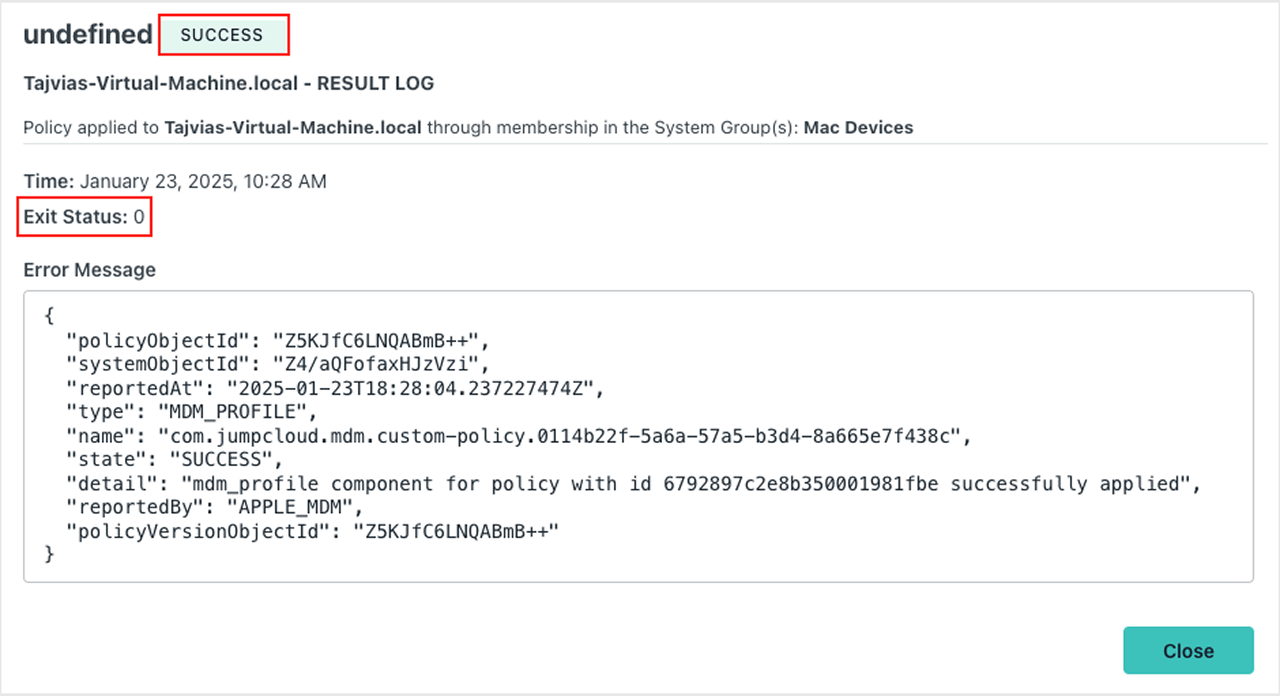
- Click on View to ensure that the profile was deployed successfully.
Deploying the Cyberhaven Sensor
- In the JumpCloud Admin Portal, navigate to Device Management > Software Management > Apple.
- Click on the plus (+) symbol and select JumpCloud Private Repo from the list. A new custom app configuration page is displayed.
- On the New Custom App page, enter an application name. For example, Cyberhaven and upload the Cyberhaven Sensor .pkg file.
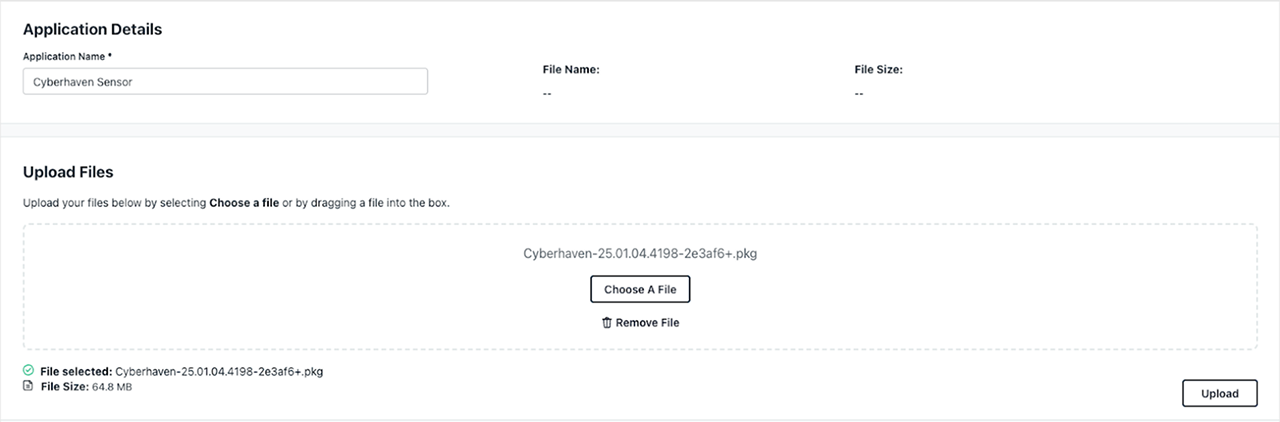
- Once the upload is complete, assign it to the appropriate Device Group or Devices.
Known Issue: VPN Configuration Prompt
Some MDM solutions may prompt for a VPN hostname when uploading the Cyberhaven MDM profile (version 2.0.8 or later), due to the inclusion of inline proxy support for Microsoft Teams traffic inspection. If prompted, enter 127.0.0.1 as the VPN hostname to proceed with the upload. For details about Microsoft Teams support, see Microsoft Teams Support with Windows and macOS Sensors