Advanced Tamper Protection for Windows and macOS
Cyberhaven offers robust tamper protection features to enhance the security of the Sensors running on your Windows and macOS endpoint devices.
These optional features include:
- Uninstall Protection
- Service Stop Detection
- File Tamper Detection
Uninstall Protection
An administrator can configure password protection for an endpoint group in the Cyberhaven Console to prevent end users from deleting the Endpoint Sensor from their devices. When enabled, the user of the endpoint device is required to provide a password for the deletion to proceed, which will also be enforced for local admin users.
To configure uninstall protection for an endpoint group,
-
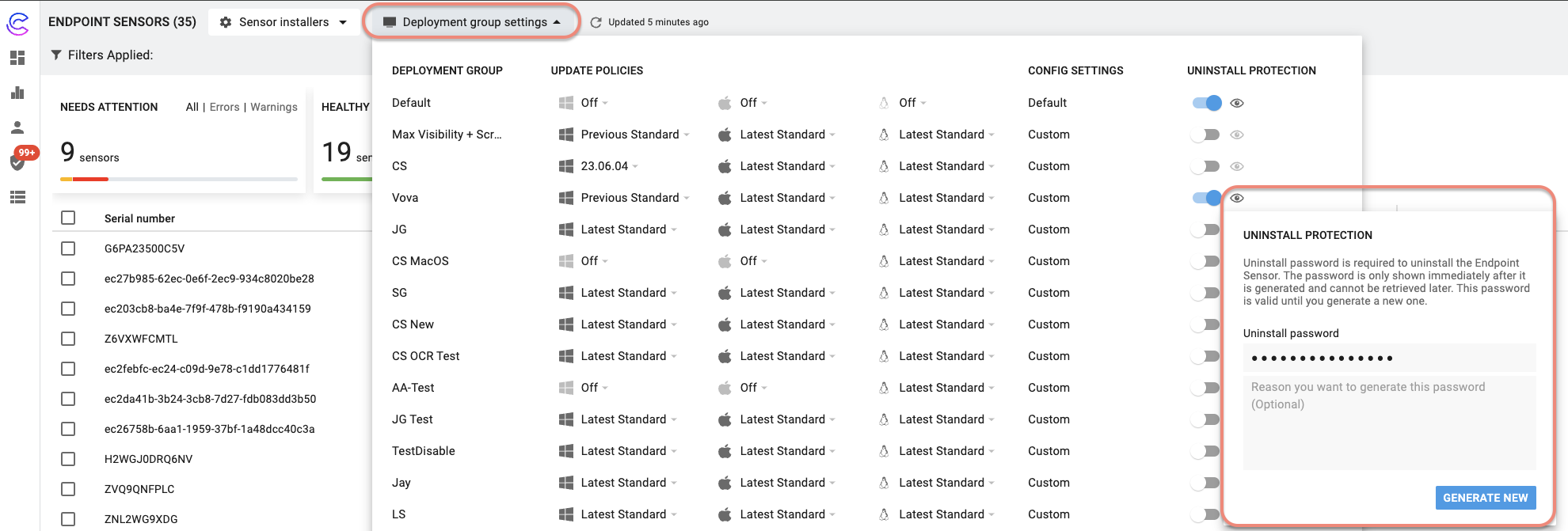
Log into the Cyberhaven Console, go to the Endpoint Sensors page, and then click on Deployment group settings.
-
Slide the toggle button next to the group for which you want to enable uninstall protection.
-
Next, click on the eye icon. The Uninstall Protection dialog box is displayed with the option to generate a new uninstall password.
-
Click Generate New in the dialog box, to generate a new password. Then click Continue in the Confirmation dialog box. The new password is activated in 5 minutes. Simultaneously, the old password expires.
The password is only displayed once, immediately after it is generated, and cannot be retrieved afterward.
Service Stop Detection
The Sensor generates a notification when a user or a program stops a Cyberhaven service.
This feature is enabled by default on Windows Sensors. For macOS Sensors, you can enable it by contacting Customer Support.
File Tamper Detection
The Sensor generates a notification when a user or program performs certain actions on files and folders that are related to the Sensor. These files are also known as protected files. A notification is generated when a protected file is created, renamed, modified, or deleted.
This feature is enabled by default on Windows Sensors. For macOS Sensors, you can enable it by contacting Customer Support.
Viewing the notifications
The notification messages are displayed on the Endpoint Sensors page in the Console. These notifications will automatically expire in seven days and cannot be dismissed by an administrator. The expiration time interval is fixed and can only be modified through backend configuration by contacting Customer Support.