Endpoint Inventory
The Endpoints page provides a live inventory of every device that has registered a Cyberhaven sensor. Use the table to monitor health, installation status, software versions, and recent activity across Windows, macOS, and Linux endpoints.

Filters and search
- Select Filters to narrow the list by platform, health status, assigned profile, browser extension coverage, or last activity.
- Use the inline search box to locate devices by hostname, serial number, user, or profile name.
- Clear filters at any time to return to the full inventory.
Table columns
Select Columns to show or hide the data points your team tracks. For a complete description of every field shown in the table, see Endpoint Sensors Page Attributes.
Status definitions
Use the Status filter to focus on devices that need remediation. Status values and remediation guidance are documented in the Endpoint Status API reference.
Endpoint actions
Use the three-dot menu in the Actions column to:
- View detailed endpoint information, including policies, configurations, and version history.
- Trigger remote troubleshooting commands (for example request logs) when available for your role.
- Copy the device’s install token or profile assignment details to assist with support cases.
Request diagnostics
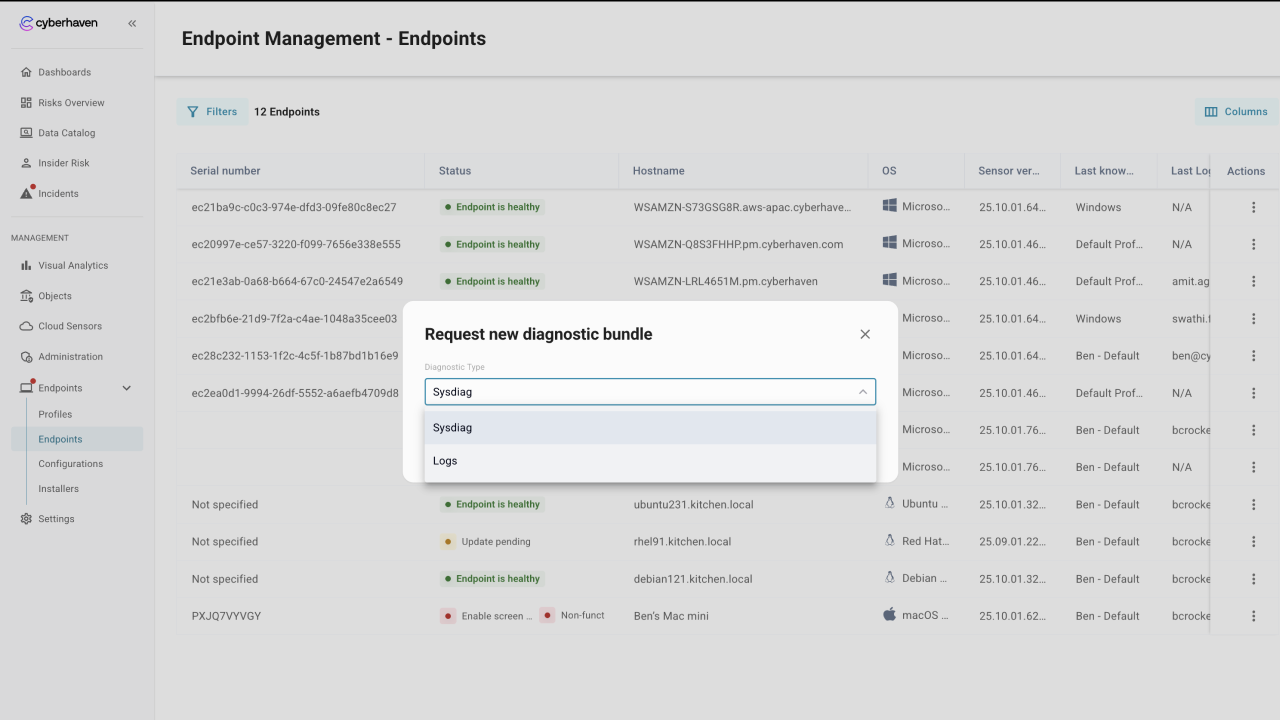
- Use Diagnostics request to collect sensor data remotely for troubleshooting without direct access to the device.
- Choose Sysdiag (macOS only) or Logs. Sysdiag bundles contain the full system diagnostic report plus Cyberhaven logs.
- After submitting, the Cyberhaven backend queues the request. The local
CyberhavenAutoUpdaterprocess retrieves the task, captures the data, and uploads it silently. - The request status updates to “Successfully uploaded a logs diagnostics bundle” when complete. If the status remains pending, close and reopen the modal to refresh it, or cancel and reissue the request.
- If a request ultimately fails, gather logs manually and upload them via the support form.
Troubleshooting tips
- Devices that remain Non-functional after more than one check-in cycle often require a reinstall. Download the latest installer from Endpoint Installers.
- If multiple macOS devices show Enable screen capture permission, remind users to approve screen recording in System Settings or push the permission through MDM.
- Use the Last active column to spot dormant devices that may need to be contacted or offboarded.