Endpoint Detection Configuration
The detection configuration defines how the endpoint sensor captures visibility data such as screenshots, how the browser extension behaves, and what protections are enforced during a monitored session. Tune these settings to balance user awareness, application coverage, and resource consumption.
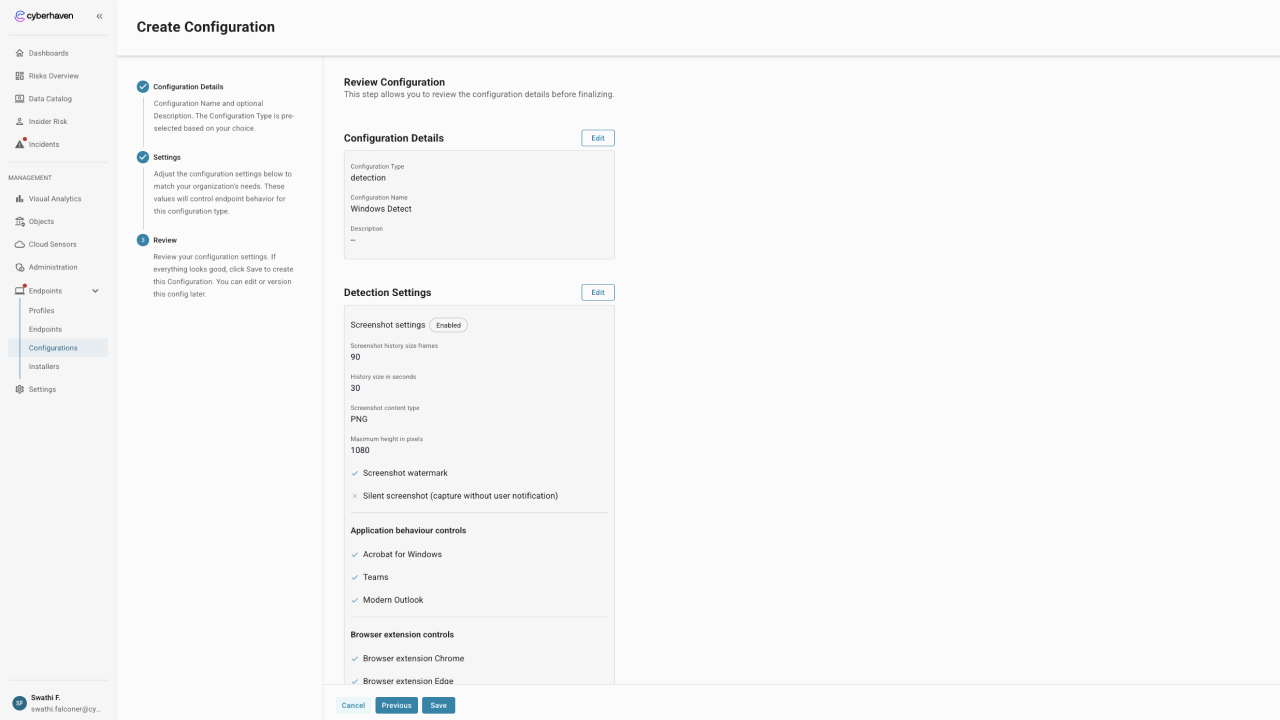
Screenshot settings
Enable Screenshot settings to capture evidence when protected events occur. Screenshots are buffered locally so detections can include the frames surrounding an incident.
| Setting | Default | Range | Description |
|---|---|---|---|
| Screenshot history size frames | 90 frames | 1 – 100 frames | Controls how many frames the sensor stores in memory. Higher values provide more context around an event at the cost of additional memory usage. |
| History size in seconds | 30 seconds | 1 – 100 seconds | Defines the time window that the buffered frames represent. Pair with the frame count to match your evidence requirements. |
| Screenshot content type | PNG | — | Format for the stored screenshot. PNG preserves image fidelity; switch to JPEG or WEBP when you prefer smaller file sizes. |
| Maximum height in pixels | 1080 px | — | Caps the vertical resolution of each captured frame. Lower the value to reduce file size for high-resolution displays. |
Additional capture options:
- Screenshot watermark (default: off) adds an overlay that cites Cyberhaven as the capture source. Enable when your organization requires explicit disclosure.
- Silent screenshot (default: off) suppresses user notifications when a screenshot is captured. Use cautiously to balance transparency with investigative needs.
Application behavior controls
Toggle these options to apply tailored detection logic for key enterprise applications on the endpoint:
- Acrobat for Windows
- Teams
- Modern Outlook
When enabled, Cyberhaven applies additional heuristics designed for the selected application, improving classification accuracy and policy enforcement.
Browser extension controls
The browser extension monitors web activity and performs inline detections. Enable coverage per browser to match your supported fleet:
- Browser extension Chrome
- Browser extension Edge
- Browser extension Firefox
- Browser extension Safari
The Browser extension management listen port (default: 10584) defines the localhost port the extension uses to communicate with the sensor. Adjust only if the default conflicts with another service in your environment.
Web applications controls
Specify which web applications the browser extension should monitor. Selecting an application enables specialized detections and user messaging for that service.
- Box
- GitHub
- GitLab
- Gmail
- Google Workspace
- Google Workspace fullpath
- Notion
- Office 365
- Outlook web app
- Salesforce
Review this list regularly and enable coverage for any additional applications that handle sensitive data in your organization.
Content inspection & blocking
These controls determine how the sensor behaves when content inspection is required or when inline blocking is triggered.
- Fail close for content inspection: If inspection is unavailable (for example due to a timeout), the sensor blocks the action instead of allowing it.
- Allow fetch: Permits the sensor to retrieve additional content needed to evaluate a detection. Disable only when strict network egress controls are required.
- Inline tag scan for copy blocking: Enables tag evaluation during copy operations so policy can block or allow in real time.
- Inline tag scan for upload blocking: Performs tag evaluation on uploads to enforce blocking logic before data leaves the device.
TAG scan for system events
Tag scans enrich detections for system-level events. Enable the relevant options to collect tag context for each action:
- Scan app access
- Scan copy move
- Scan edit
- Scan create
Capturing these signals improves incident fidelity but increases the amount of metadata processed on the endpoint.
Session monitoring limits
Session limits prevent long-running monitoring sessions from overwhelming the user or device resources.
| Setting | Default | Range | Description |
|---|---|---|---|
| Max monitored sessions | 15 | 1 – 15 | Caps the number of concurrent monitored sessions per endpoint. Lower the value to conserve resources on constrained devices. |
| Blocking popup throttling | 5 seconds | 5 – 3,600 seconds | Minimum interval between repeated blocking pop-ups for the same user action. Increase the value to reduce user friction during repeated policy violations. |
After adjusting detection settings, deploy the updated configuration through a profile and monitor telemetry to confirm the changes deliver the desired coverage with acceptable performance.